DistroKid artwork requirements: every error, rejection and fix
DistroKid's cover rules, the errors and rejection emails artists get, and the right fix for each, so a cover problem never costs you your release date.
DistroKid will take almost any cover you upload. That’s exactly why so many get rejected later.
The upload form only checks the file. What’s on the cover gets judged after you hit submit, by DistroKid and then by every store. So a cover can upload fine and still come back rejected days later, right when you need the time most.
This guide covers DistroKid’s actual rules, every error and rejection artists run into, and the right fix for each one.
The short answer
DistroKid asks for a square JPG of at least 1000 x 1000 pixels, in RGB color, as one image. Make it at least 3000 x 3000. DistroKid sets no maximum, so 4000 x 4000 is even safer.
Keep URLs, QR codes, handles, prices, logos and the word “CD” off it. Use only your artist name and title, spelled exactly like your release info, or no text at all.
What you’ll learn
- DistroKid’s real file rules, and the myths other guides repeat
- What each upload error means, and the 2 minute fix
- Why covers get rejected, with real cases from artists
- The right way to fix a cover at each stage, without deleting your release
- How early to upload so a rejection doesn’t move your release day
What are DistroKid’s artwork requirements?
A square JPG, at least 1000 x 1000 pixels, in RGB, as a single image. DistroKid recommends a perfect 3000 x 3000 square, and asks you not to reuse art from another release. That’s the whole file list on its album artwork requirements page.
| Rule | What DistroKid says | What to do |
|---|---|---|
| Size | At least 1000 x 1000, ideally 3000 | At least 3000 x 3000 from the start |
| Shape | Ideally a perfect square | Exactly square, to the pixel |
| File type | JPG | Export a JPG |
| Color | RGB. CMYK or grayscale can cause an error | Save as RGB |
| Pages | One image, even for an album | No multi-page files |
| Reuse | Don’t reuse art from another release | A new image for every release |
| File size | No limit published | A normal high quality JPG is fine |
| DPI | Not mentioned | Ignore it. Only pixels count |
Why 1000 pixels isn’t really enough
DistroKid’s minimum is lower than Apple Music’s. Apple’s Video and Audio Asset Guide sets a 1,400 pixel floor, says not to stretch a smaller image up to reach it, and rejects excessively blurry or pixelated art. A 1000 pixel cover clears DistroKid and can still fail one step later.
So make every cover at least 3000 x 3000. DistroKid sets no maximum, so 4000 x 4000 works too, and that’s the size Apple’s artist help page asks for. Our guide to the cover spec that passes every store explains how it fits with other distributors.
What other guides get wrong
Many guides mix in other distributors’ rules. Here’s what DistroKid itself says:
- There’s no 3000 pixel minimum. 3000 is the recommendation. 1000 is the floor.
- There’s no published file size limit or maximum size. Numbers like 10 MB (TuneCore, Ditto) or a 3000 pixel maximum (TuneCore, CD Baby) don’t apply to DistroKid.
- DPI doesn’t matter. A 3000 x 3000 file is the same at 72 or 300 DPI.
- A cover that’s too small or not square isn’t always rejected. DistroKid says it adjusts smaller or rectangular art automatically, and warns it may not look the way you meant. That sounds helpful, but it’s a trap.
3000 x 2000
Black bars
3000 x 3000
Shows as made
When DistroKid squares a cover for you, artists report black bars on the stores, or art turned sideways. And a file that’s only a few pixels off, like 4000 x 3997, can get blocked instead, with an “isn’t square” error.
Why does DistroKid say my artwork has an error?
An error in the upload form is almost always about the file, not the design. Fix the file and upload it again. DistroKid publishes the exact wording for only one of these, the zero bytes error, so the rest use what artists report seeing.
| What you see | What it means | The fix |
|---|---|---|
| An error about CMYK or grayscale | The file uses print color or black and white | Save it as RGB. DistroKid suggests the free Pixlr editor, which converts it |
| “Isn’t square” | Width and height differ, even by a few pixels | Put it on an exact square canvas, like 3000 x 3000 |
| “The file you uploaded is zero bytes” | On iPhone, the file didn’t come through, often because of iCloud | Save it to your phone, pick it with Choose File, then start the upload again |
| A general “artwork error”, no reason | Often the browser or the file type, not the art | Export a JPG, then try a computer, a different browser, and turn off any VPN |
| “Upload failed. Forbidden” | The upload was blocked, on new uploads and when replacing art | Refresh, clear your browser cache, and check it’s a normal size JPG. If it repeats, contact support |
The zero bytes fix comes from DistroKid’s help page for that error. It applies to anything you upload from an iPhone, not just covers.
One problem shows up only after upload: art that appears sideways. Artists report it after DistroKid squared a non-square file for them. Upload an exact square, and there’s nothing for DistroKid to adjust.
Why did DistroKid reject my cover art?
A rejection is about what’s on the cover, and it arrives by email after review. The email says why. The good news is that most rejections come from the same few causes.
DistroKid’s own help page names these:
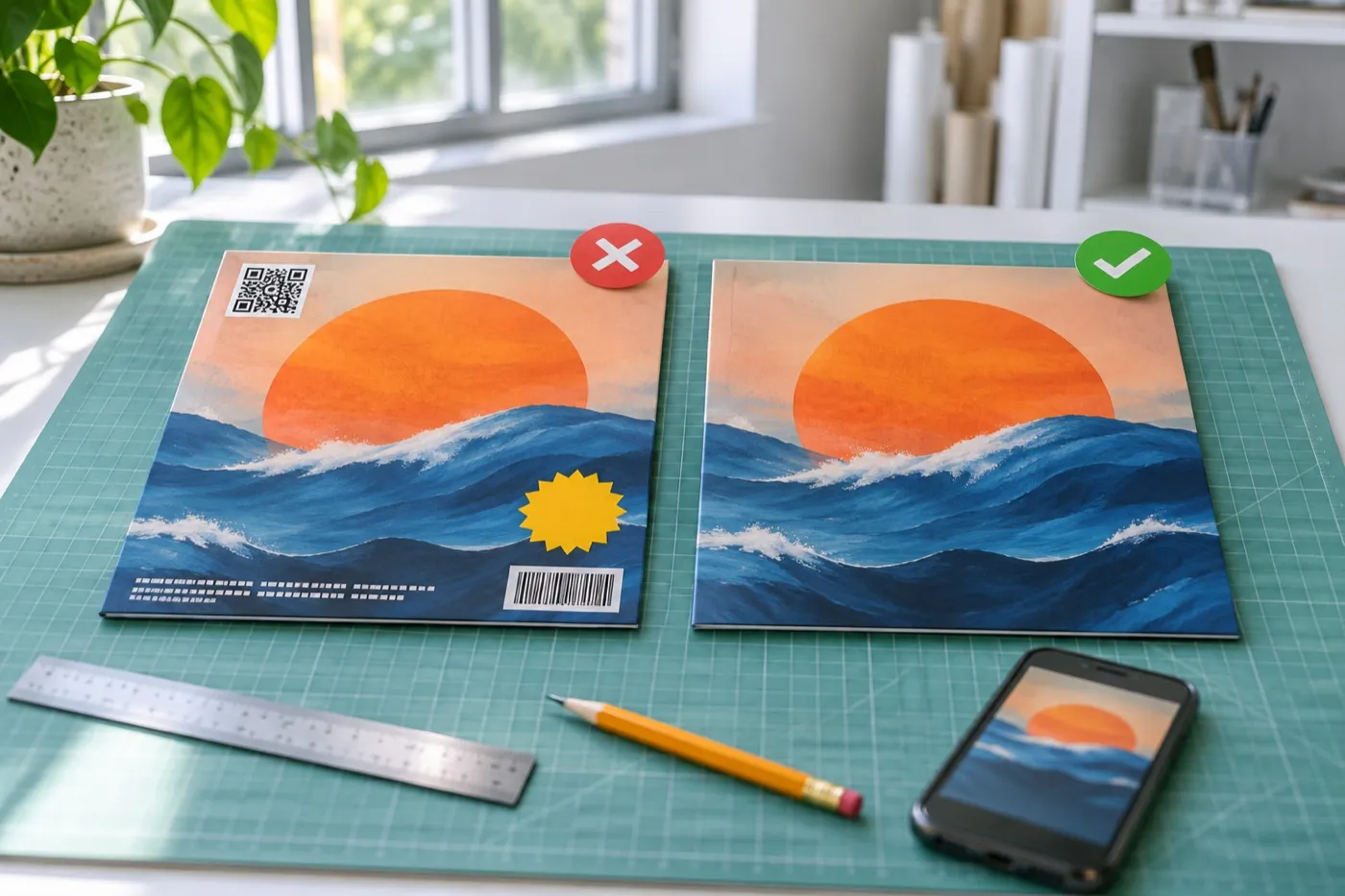
- Anything promotional: a website address, a QR code, the name of an X page, prices, and streaming or social media logos
- Quality problems: blurry, pixelated, rotated or poor quality images
- Images that aren’t original: unlicensed or stock photography. One rejection email artists shared says stock is out even if you altered it
- Content: nudity, “gross stuff”, and references to physical media like “CD”
- Duplicates: art you already used on another release, which DistroKid says may be rejected
And here’s what that looks like in real rejections artists have shared:
| What got rejected | What the email or artists said | The fix |
|---|---|---|
| “PZERO” on the cover of an artist named Protocol Zero | The artist name didn’t match the release info | Match it letter for letter, or take the text off |
| A subtitle, track list, catalog number and date | DistroKid’s email said only the artist name and title were allowed | Cut everything except name and title |
| A cover with App Store and Google Play badges | The email cited trademarks. Commenters pointed to the badges | Remove every logo you don’t own |
| A still from an old VHS video | The email said art must be original. The artist blamed the still | Use your own photo, or art made for you |
Some problems come later. One artist’s cover used an image from a TV show. It passed review, then drew a copyright notice after release, and the album was pulled from the stores.
The rejection that surprises people most
Your own name can get you rejected. In one case, DistroKid’s founder explained on Reddit that stores want any name on the cover to match the release info exactly, and that leaving the name off entirely is fine.
So you have two safe options. Type your artist name and title exactly as they appear in DistroKid, same capitals and symbols. Or design a cover with no text. Stylized logos and shortened names, like PZERO, are where mismatches happen.
Keep your promo text for a second version. “Out now”, your handle and the release date belong on the version you post on socials, not the one you upload.
How do you fix a rejected cover without losing your release?
Don’t delete the release. Fix the cover, then click Replace Artwork on the album page. DistroKid’s guide to handling a rejected release says artwork rejections don’t need a new upload.
1 · In the upload form
Album cover
golden-hour.jpg
4000 x 3997
Image isn't square
Fix the file
2 · In a rejection email
From your distributor
Your cover needs a change
The artist name on the artwork doesn't match the release.
Replace ArtworkReplace the art
3 · Already live
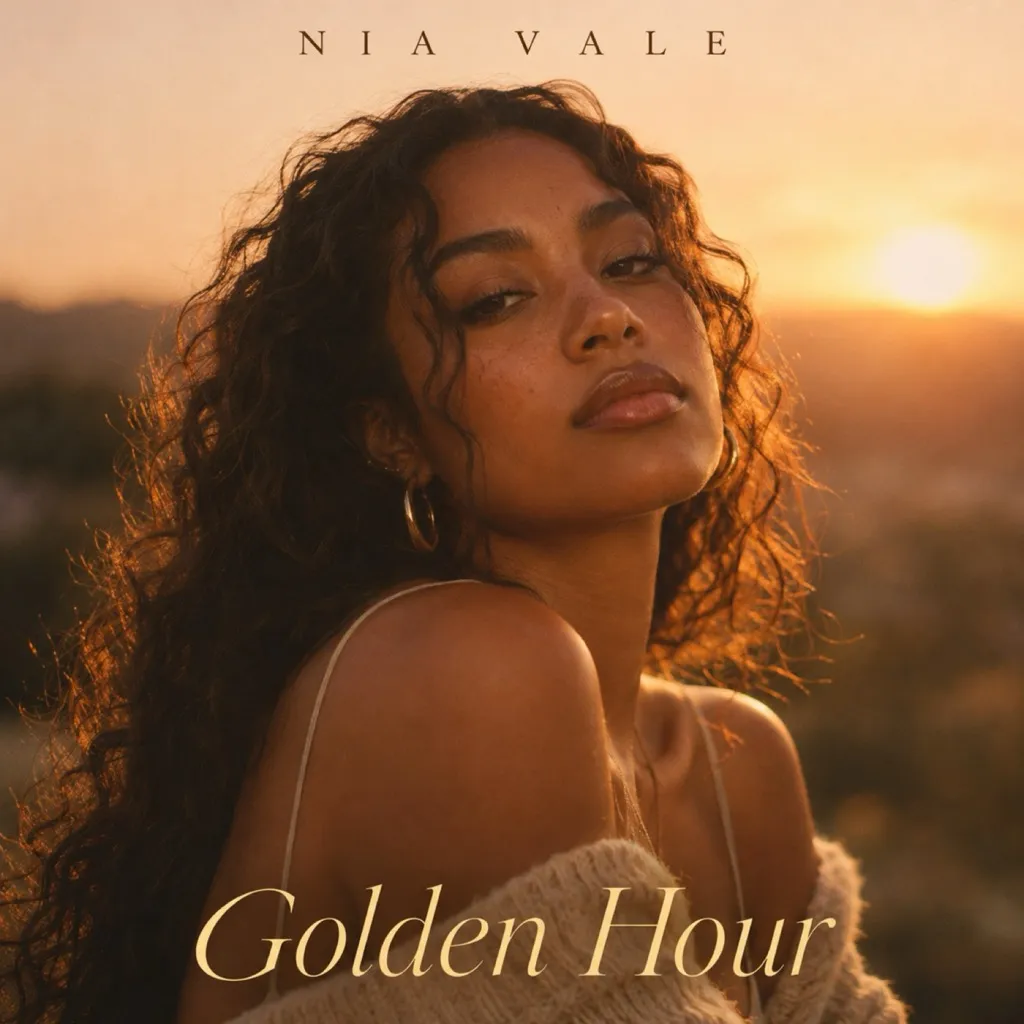
Golden Hour
Nia Vale · Single
Send an edit
- Read the email closely. It names the reason. Fix that exact thing, and check the rest of the cover against the list above while you’re at it.
- Go to the album page in your DistroKid dashboard and find the artwork section.
- Click Replace Artwork and upload the fixed file.
- Think it’s a mistake? Reply to the rejection email and explain why. A cover that’s grainy on purpose, for example, is worth explaining before you redo it.
What if you spot a mistake before release?
This is the trap that costs artists the most time. While a release is still pending and hasn’t been rejected, artists report there’s no way to change the cover. Edit Release doesn’t offer the cover until the release has finished processing and been delivered to the stores.
You have two choices:
- Let it go live, then edit. The old cover shows first, then gets swapped. Best when the mistake is small and your release day is close.
- Delete it and upload again. You’ll re-enter every detail and go through review again. Only worth it with weeks to spare.
That’s why the one habit that saves the most time is simple: finish the cover before you upload. Not “almost finished”. Final.
How do you change your cover art after release?
Open the release, click Edit Release, add the new image under Album cover, and submit the edit request. The steps are on DistroKid’s page about changing your artwork after upload.
What to expect:
- Timing: stores usually update within a few days, and everywhere within one to two weeks. The full edit process can take one to three weeks.
- One edit at a time. While an edit is pending, you can’t submit another one.
- No shortcut. DistroKid says it can’t speed up a submitted edit.
- Same rules. The new cover goes through review like the first one.
- Your numbers stay. Artists report that a new cover doesn’t reset streams or playlist placements. For one artist, Spotify’s support confirmed an editorial playlist spot was safe.
If the old cover is still showing weeks after the edit was approved, contact DistroKid support. Spotify can’t change it on its end, and sends you back to your distributor.
Do you have to tell DistroKid your artwork is AI?
DistroKid asks when you upload, and you should answer honestly. Its page on what counts as AI-generated artwork says stores may use your answer to inform listeners.
| How you used AI | Your answer |
|---|---|
| You made the image from a text prompt | Yes |
| AI created the illustration or artwork | Yes |
| You only edited, touched up or fixed color | No |
| You only removed objects or cleaned up a background | No |
| AI added new parts to your real photo | Not covered. Our read: Yes |
DistroKid doesn’t say AI art gets rejected. Apple is stricter about one thing: art can’t mislead, so an AI image of an artist who isn’t on the record is a bad idea.
Beyond the rules, listeners notice. A cover that looks generated tells some of them the music took little effort too, and that’s a hard first impression to undo.
How early should you upload to DistroKid?
About four weeks before release day, with a future release date set. That’s DistroKid’s own advice for hitting a specific date, and it gives you room to fix a rejection before your date.
Set the date before you upload. Pick your day under Release date in the upload form. A custom future release date needs DistroKid’s Musician Plus or Ultimate plan. On the basic plan, your release goes live as soon as the stores take it in, so uploading early means releasing early. In that case, finish the cover four weeks out and upload when you’re ready for it to go live.
Upload 1 week early
- Upload
- Rejected
- Release day
- Fixed
Misses release day
Upload 4 weeks early
- Upload
- Rejected
- Fixed
- Ready
- Release day
Ready with time to spare
Here’s where the time goes:
- DistroKid’s review can take several days.
- The stores take their own time. DistroKid lists Apple at one to seven days, longer if a release gets a manual review, and Spotify at a few days.
- A rejection sends you back through review after you fix it.
- Spotify pitching needs your release delivered to Spotify first, and closes once the song is live. If you pitch at least 7 days before release, the song goes to your followers’ Release Radar.
Don’t treat silence as approval. Artists report releases sitting at “processing” for weeks and still getting rejected. If it seems stuck, ask DistroKid support instead of waiting.
What else catches DistroKid artists off guard?
Most of these only show up after release, when they’re hardest to fix.
- The cover belongs to the release, not the song. Every track on an EP or album shows the same cover. A single keeps its own art only when people play it from the single.
- Your first cover can become your profile picture. Artists report stores using it until they claim their artist profiles. Claim your Spotify for Artists and Apple Music for Artists profiles early.
- The app preview can look blurry. Artists report that DistroKid’s app preview is low resolution, and the stores still get the full file.
- Spotify Canvas is separate. DistroKid doesn’t deliver it. You add it yourself in Spotify for Artists.
How do you make sure your cover passes the first time?
Treat the store cover as its own file, made to the rules before you open the upload form. Every fix in this guide costs days. A cover that’s right the first time costs none.
The artists who never deal with rejections do the same few things. They make two versions of every cover, a clean one for the stores and a promo one for socials. They set their artist name once, in one spelling, and never change it on a cover. And they make a new image for every release, so nothing gets flagged as a duplicate. Our step-by-step guide to making single cover art shows how to plan all of that before you start.
That last part is where most artists struggle. A single every six weeks means eight or nine covers a year. Each one has to pass review, look different from the last one, and still look like you. It’s why we keep each artist’s look on file and build every new cover from it. That’s how our cover requests work, and you can see the results in our single and album cover examples.
What should you check before uploading to DistroKid?
Run through this before you hit submit. Two minutes here can save you two weeks.
- Exactly square, at least 3000 x 3000 pixels
- A JPG in RGB, not CMYK or grayscale
- Made at full size, never stretched up
- Artist name and title spelled exactly like your release info, or no text
- No URLs, QR codes, handles, prices, logos or "CD"
- Your own image or art made for you, not a stock photo
- A new image, not one from an earlier release
- The AI question answered honestly
- On iPhone, the file saved to your phone, not only in iCloud
- Uploaded about four weeks early, with a future release date set
DistroKid artwork questions artists ask
Does DistroKid accept PNG files?
Spotify and Apple Music take PNG, but DistroKid's requirements page asks for a JPG. Export a JPG and the question goes away.
Does DistroKid cover art have to be 3000 x 3000?
No. The minimum is 1000 x 1000, and 3000 x 3000 is the recommendation. Go at least that big anyway. Apple needs 1,400 pixels, says not to stretch smaller art up, and its artist help page asks for 4000 x 4000. DistroKid sets no maximum, so a 4000 file is fine.
What DPI does DistroKid need?
None. DistroKid doesn't mention DPI, and stores only look at pixel size. A 3000 x 3000 file is the same at 72 or 300 DPI.
Can my single and album use the same cover?
DistroKid warns that duplicate art may be rejected. Make a new version for each release instead: keep the look, and change the crop, color or photo.
Will changing my cover reset my streams?
No. Artists report that a new cover keeps their streams and playlist placements. The edit only swaps the image, and it can take one to three weeks to show everywhere.

Written by
Maya Chen, Design lead at Viewmize
Maya helps creators build brands people recognize at a glance. She has designed covers, channel art and press kits for independent musicians, podcasters and YouTubers.
Ask Maya's team a question
 Maya Chen ·